
The Qubetics Chain Abstraction Protocol runs a decentralized solver network. Solvers participate by operating Multi-Party Computation (MPC) nodes. These nodes process cross-chain transactions and help secure the protocol.
When you purchase a Solver Node through Instanodes, the server infrastructure is set up for you. You do not need to configure ports, firewalls, or monitoring. After purchase, you complete a short onboarding flow on the Qubetics Solver Dashboard to register your node, add liquidity, and go live.
What you will do in this guide:
- Purchase and deploy a Solver Node via Instanodes.
- Retrieve your Node ID and Node URL from the InstaNodes dashboard.
- Connect your wallet on the Qubetics Solver Dashboard.
- Register your solver.
- Add liquidity and verify your status.
- Monitor and claim rewards.
- Withdraw liquidity when needed
Before You Start
Make sure you have the following before you begin.
Node URL Requirement
The Solver Dashboard only accepts HTTPS URLs. Your Node URL must follow this format:
https://(your-domain-or-ip)
If your node IP is not yet bound to a domain, you will need to set up an HTTPS proxy before registering.
How to bind Your Node URL To HTTPS
- Set up a proxy server (nginx or AWS ALB). Route traffic from your node IP and port through ports 80 and 443.
- Configure the proxy to redirect HTTP (port 80) to HTTPS (port 443).
- Install an SSL certificate using Certbot (Let’s Encrypt) or a third-party certificate.
- Map your server IP to your domain name.
Instanodes: Step-by-Step Onboarding Flow
Follow these steps in order. Complete each one before moving to the next.
Part A — Deploy Your Node on InstaNodes
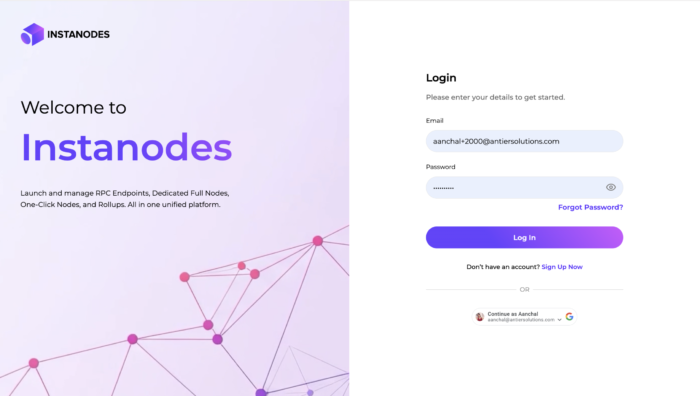
Step 1: Sign In to InstaNodes
- Go to oneclick-app.instanodes.io/app/one-click.
- Create an account or sign in using OTP, Google, or social login.
Step 2: Deploy a Qubetics Solver Node
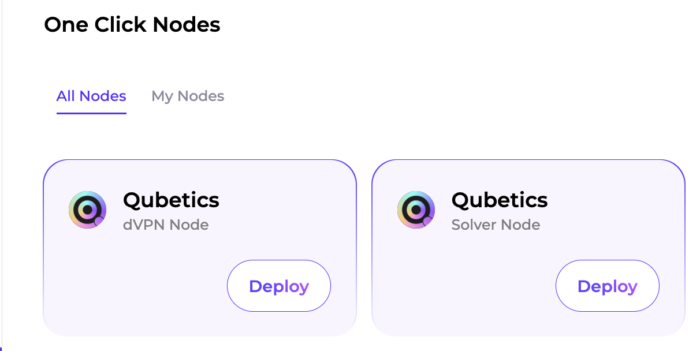
From the Instanodes dashboard, select Qubetics Solver Node, click Deploy, then choose Solver Node in the guided deployment flow. Instanodes provisions a server configured for Solver nodes automatically.
Step 3: Select a Plan
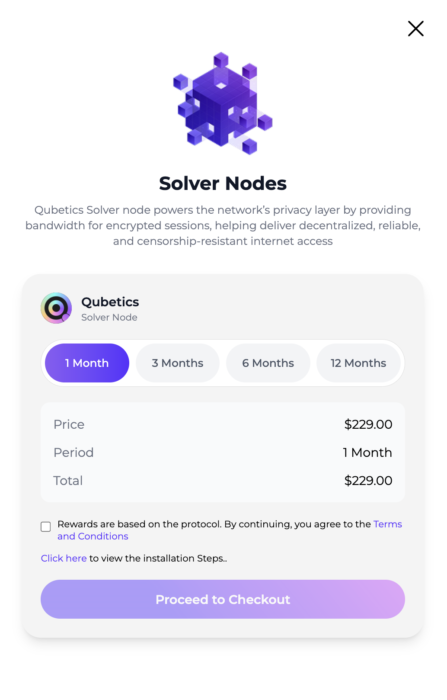
Choose a subscription period. Longer periods offer a lower monthly rate.
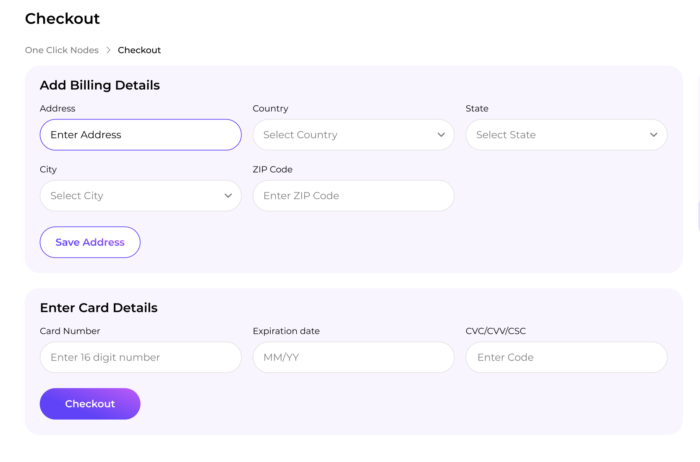
Step 4: Complete Payment
Proceed to checkout and pay using an international credit or debit card. No crypto wallet is required at this stage.
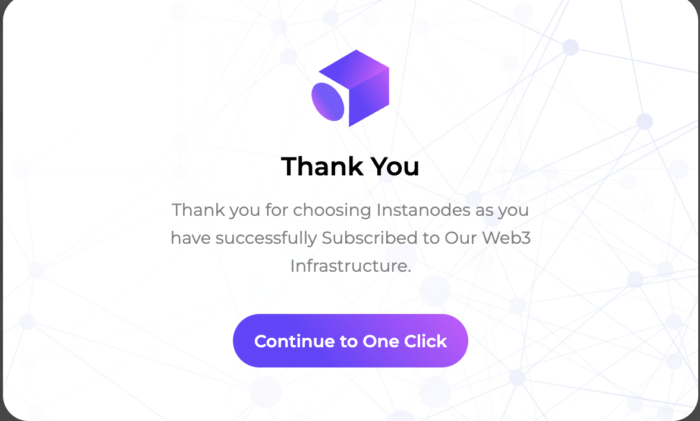
Step 5: Node Provisioning
After payment, Instanodes shows a confirmation screen and begins provisioning your node immediately. The server is configured with the required ports, security rules, and monitoring.
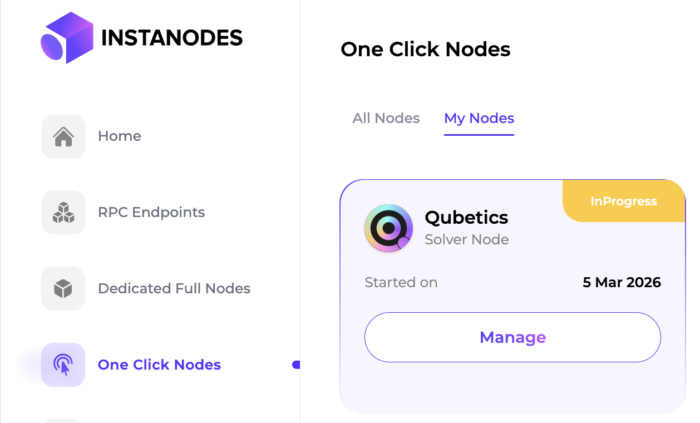
Step 6: Go to My Nodes
Navigate to the My Nodes section of the Instanodes dashboard. Here you can see your node start date, expiry date, current status, and plan management options.
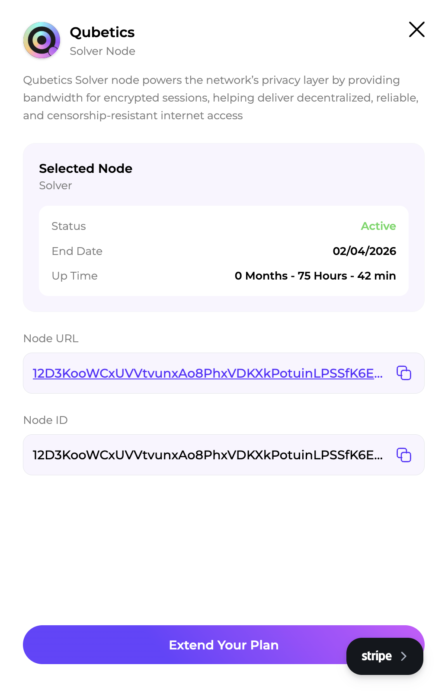
Step 7: Retrieve Your Node Credentials
Click Manage to reveal your credentials. You will be provided with the following:
Part A — Deploy Your Node on InstaNodes
Step 8: Open the Qubetics Solver Dashboard
The Solver Dashboard is where you register your node, manage liquidity, and track rewards. Open the dashboard and proceed to the onboarding flow.
Step 9: Connect Your Wallet
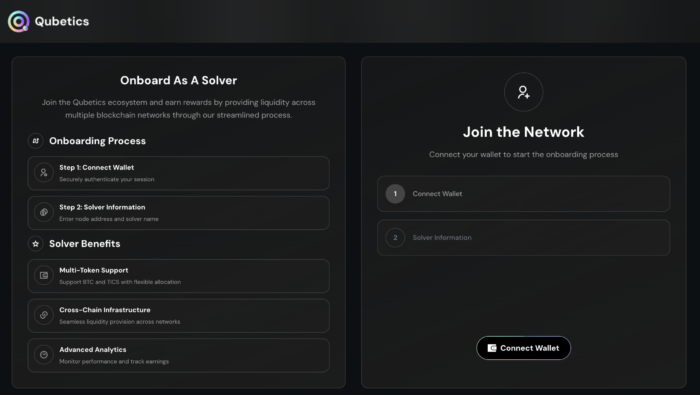
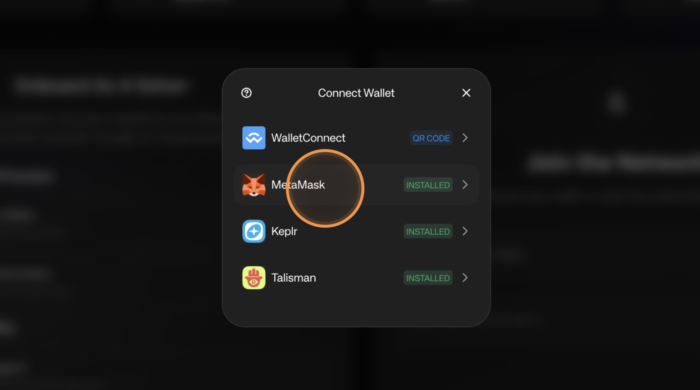
Click the Connect Wallet button on the dashboard. Once connected, your wallet address fills in automatically and becomes your solver identity on the network.
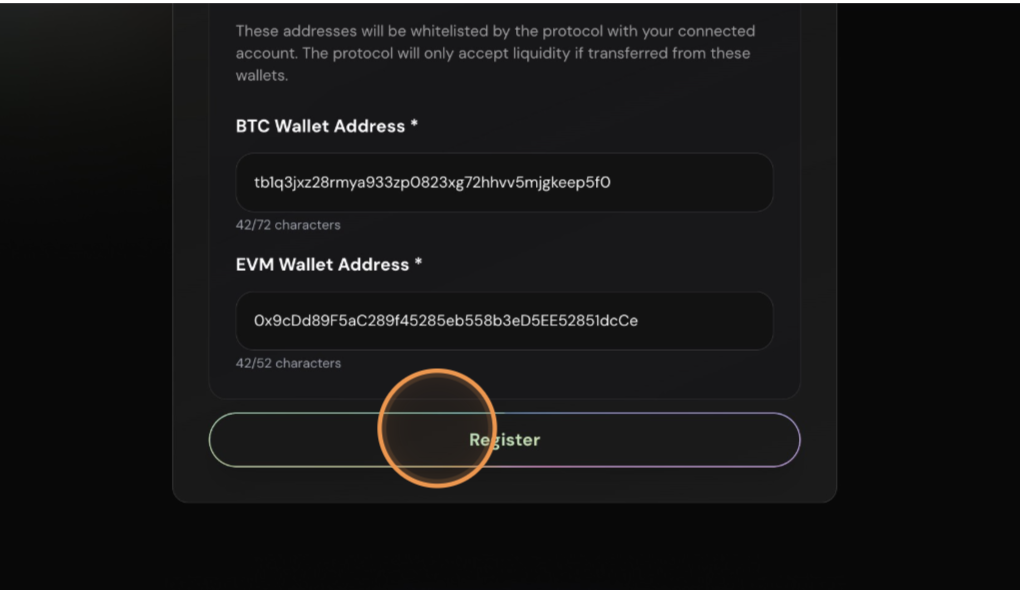
Step 10: Register Your Solver
Complete the Solver Information form. All fields are required and must be unique across the network.
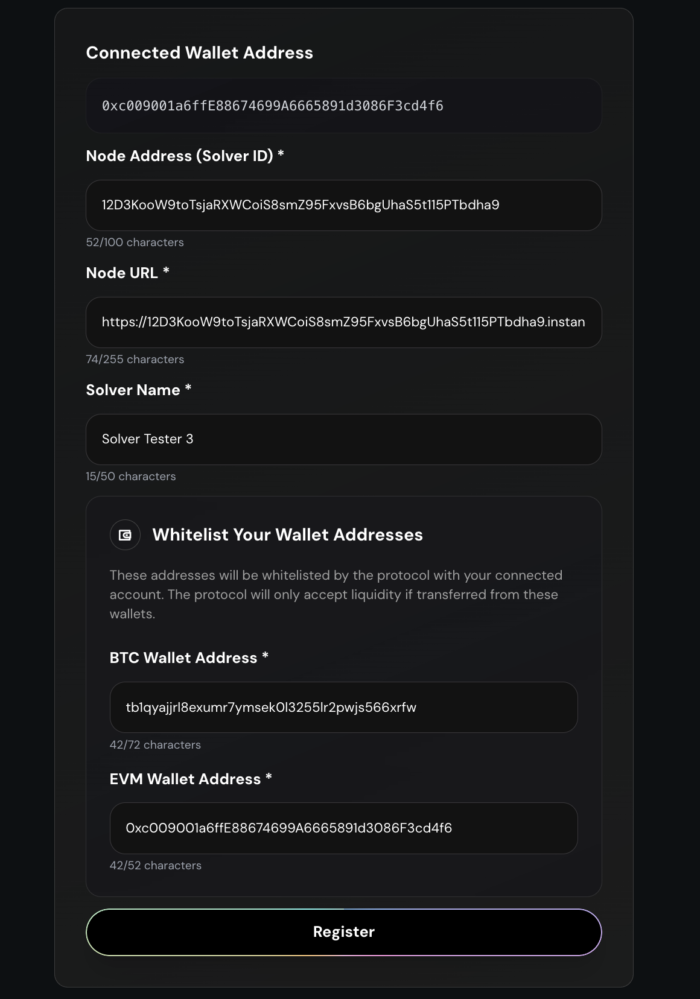
When the form is complete, click Register. Your wallet will prompt you to approve a transaction. This registers you in the solver network smart contract.
Step 11: Enter the Solver Dashboard
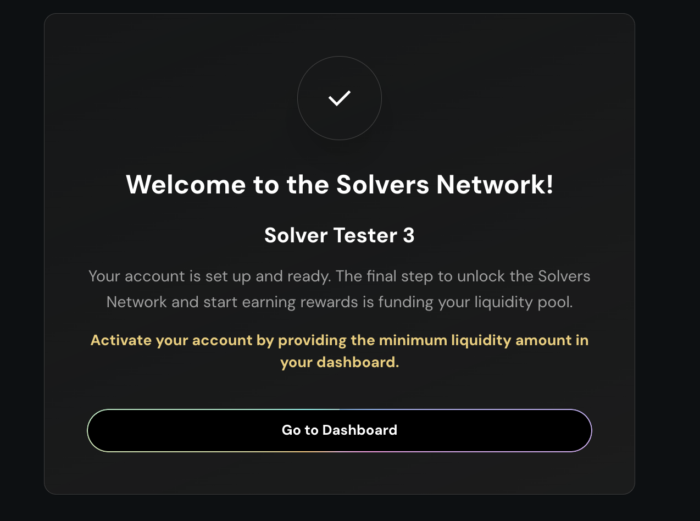
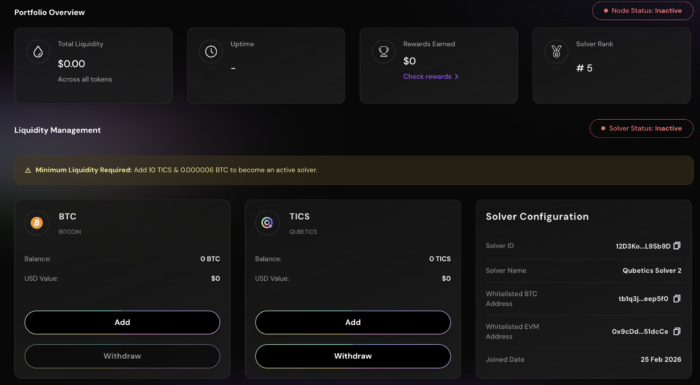
After registration, you are added to the solver network with a Pending status. You must add liquidity to activate your solver. Click Go to Dashboard to continue.
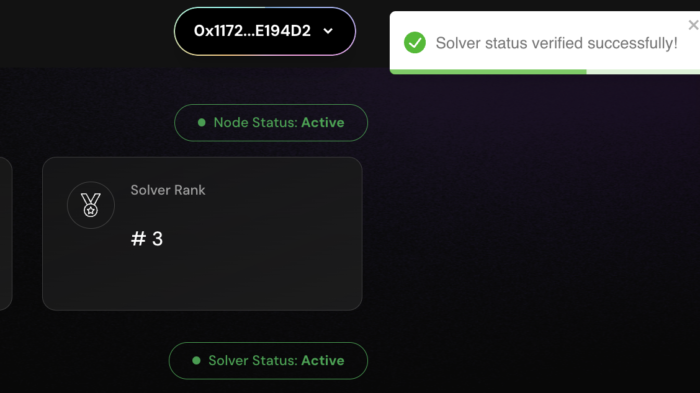
The dashboard displays your registered details and current status:
- Node Status (Inactive until liquidity is added and verified).
- Liquidity Status (Inactive until liquidity is added and verified).
- Node Uptime.
- Solver Rank on the leaderboard.
- Recent Activity Log.
Managing Liquidity and Rewards
Adding Liquidity
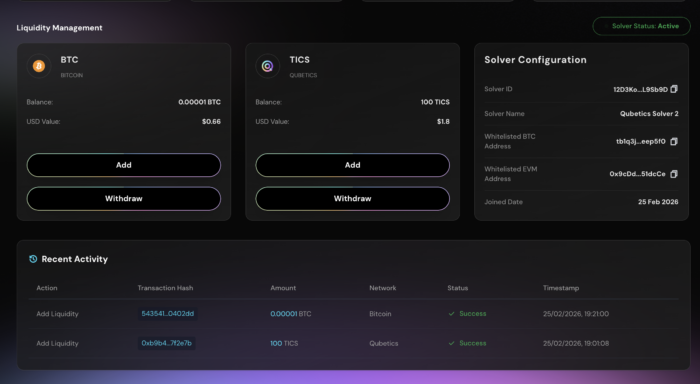
The solver network currently supports BTC and TICS. You must add both tokens to activate your solver status.
- On the dashboard, click Add next to the token you want to deposit.
- Check the minimum required amount shown for that token. You must meet this threshold.
- Tick the checkboxes and click Show Address. A deposit address appears on screen.
- Copy the address and transfer the required funds from your whitelisted wallet.
Once the transfer confirms on-chain, your balance updates on the dashboard and appears in the Recent Activity tab.
Verifying Your Solver Status
After liquidity is added, a Verify Status button appears next to your node status.
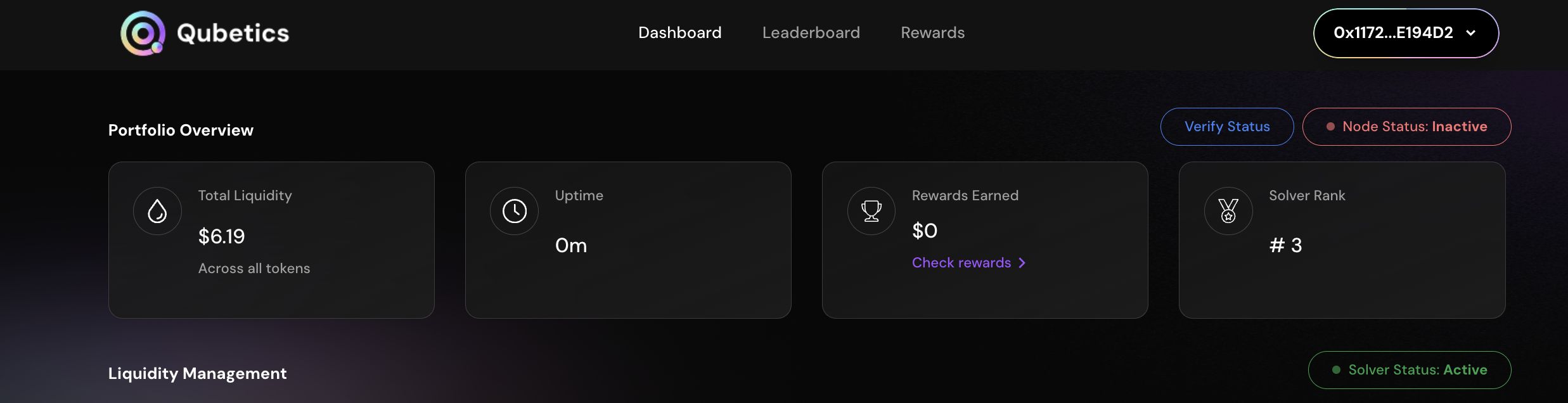
- Click Verify Liquidity.
- Approve the transaction in your wallet.
Once verified, your Node Status and Solver Status both change to Active. Your solver is now live on the network.
Traditional Sectors often wrestle with the need for scalable infrastructure Read more..
Blockchain nodes are essential for the operation of any blockchain Read more..
Blockchain is a distributed digital ledger (also known as Distributed Read more..
Blockchain technology has experienced an amazing journey since it emerged Read more..