Qubetics Solver Node: Setup Guide

Mar 9, 2026 | Instanodes

The Qubetics Chain Abstraction Protocol enables solvers to actively participate in the decentralized solver network by operating a Multi-Party Computation (MPC) node. Each node contributes to the off-chain solver network, strengthening decentralization, security, and resilience across the protocol.
This guide provides step-by-step instructions for setting up and running a solver MPC node using Instanode (one-click service), ensuring solvers can seamlessly join the network and begin contributing to its operations.
With Instanodes, you don’t need to handle Ubuntu or Mac setup, firewall rules, port configuration, or monitoring. The infrastructure is provisioned for you, ready for production use.

Why Run a Qubetics Solver Node ?

  • Earn rewards from actual Qubetics chain abstraction transactions
  • Contribute to a decentralized solver network
  • No complex setup or DevOps knowledge required
  • Full wallet control and non-custodial rewards
  • Enterprise-grade uptime and monitoring handled for you

Before You Start

Make sure you have the following before you begin.

Instanodes account

Web3 wallet

Wallet funded
Whitelisted wallets
Node URL (HTTPS)
Create a free account at https://www.instanodes.io/
MetaMask, Keplr, or any WalletConnect-compatible wallet
Your wallet must hold enough BTC and TICS to meet the minimum liquidity requirements
A BTC wallet and an EVM wallet that you will register during onboarding
Your node must be reachable over HTTPS. The URL must begin with https://

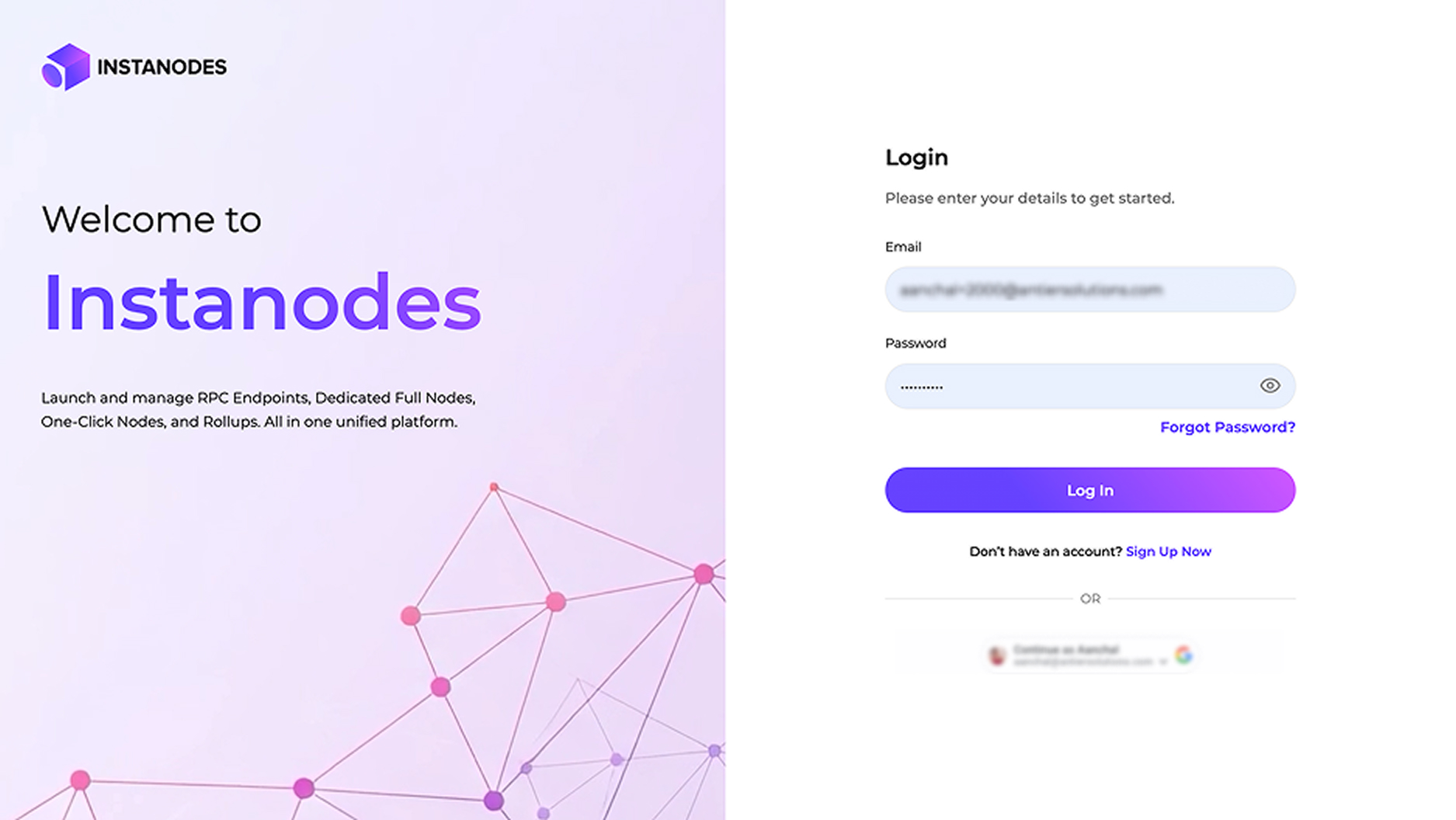
Step 1: Sign in to Instanodes

Create an account or sign in using OTP, Google, or social login.
Instanodes Dashboard

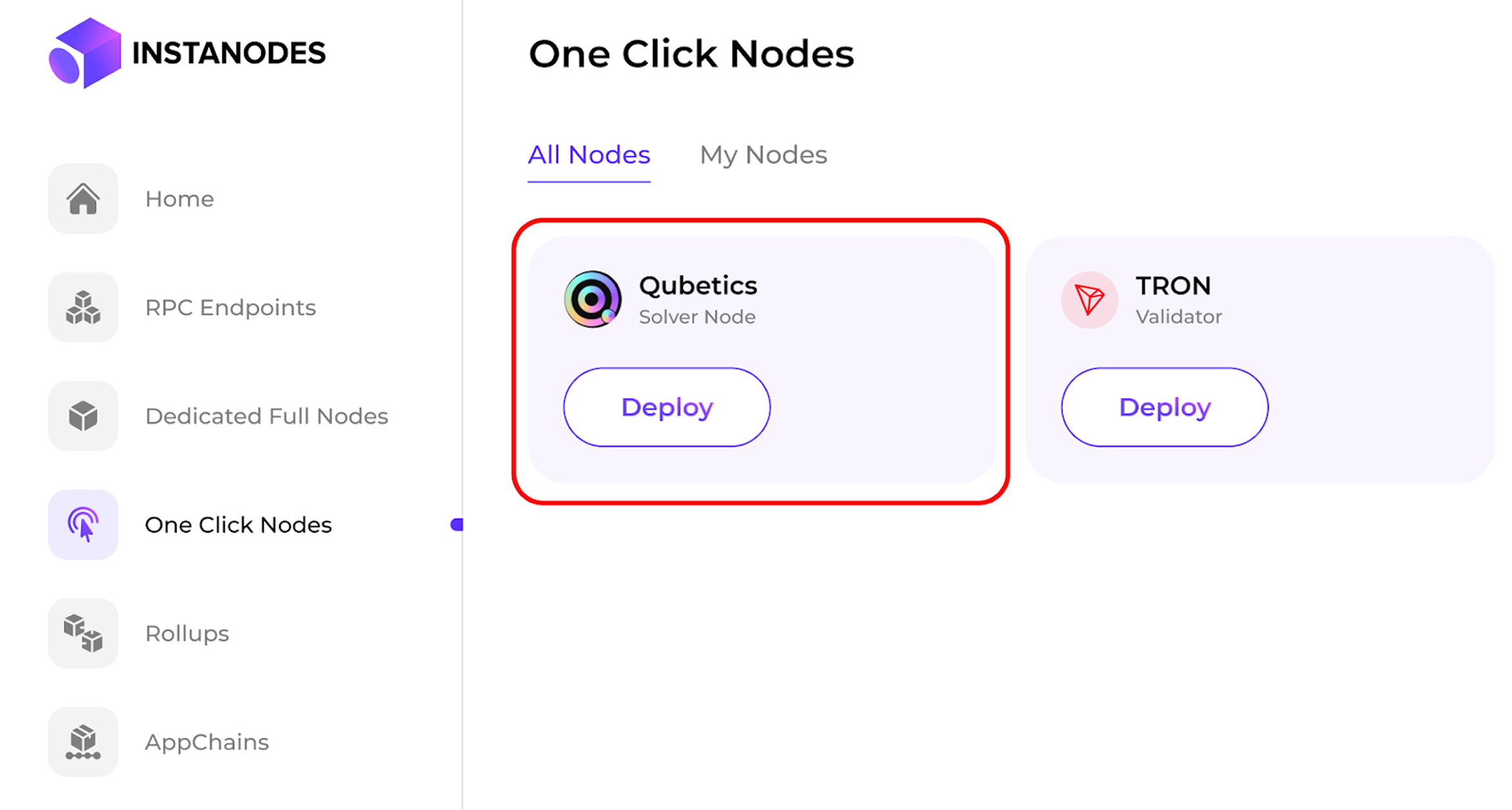
Step 2: Start Qubetics Solver Node Deployment

From the dashboard:

  • Choose Qubetics Solver Node
  • Click Deploy
  • Select the Solver Node option in the guided deployment flow

This triggers automated server provisioning optimized for Solver nodes.
Instanodes Dashboard

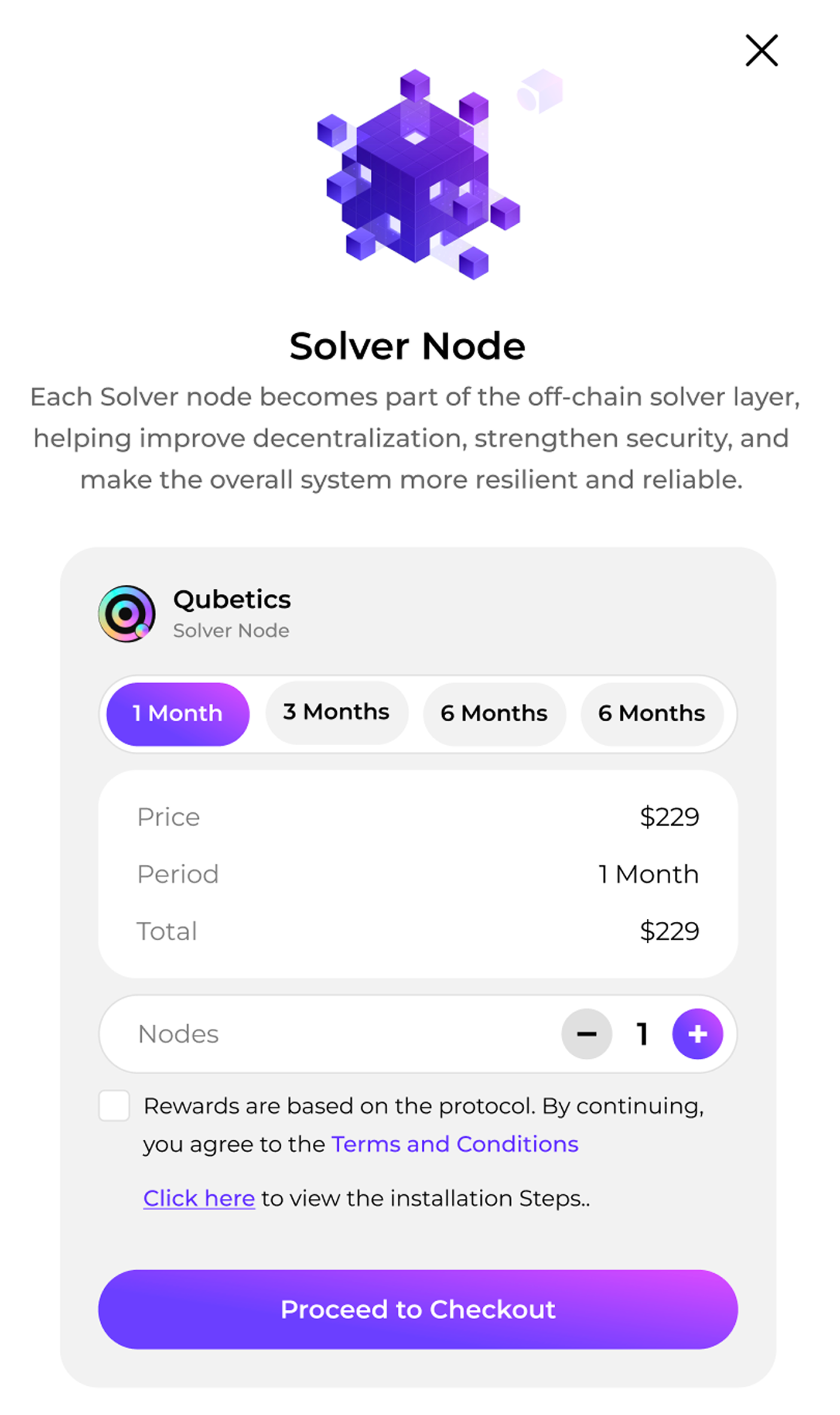
Step3: Select Your Plan

Choose as per your required time period, the longer time period will offer an economical rate
1 month
3 month
6 month
12 month
Standard rate
Reduced rate
Further reduced rate
Most economical rate
Instanodes Dashboard

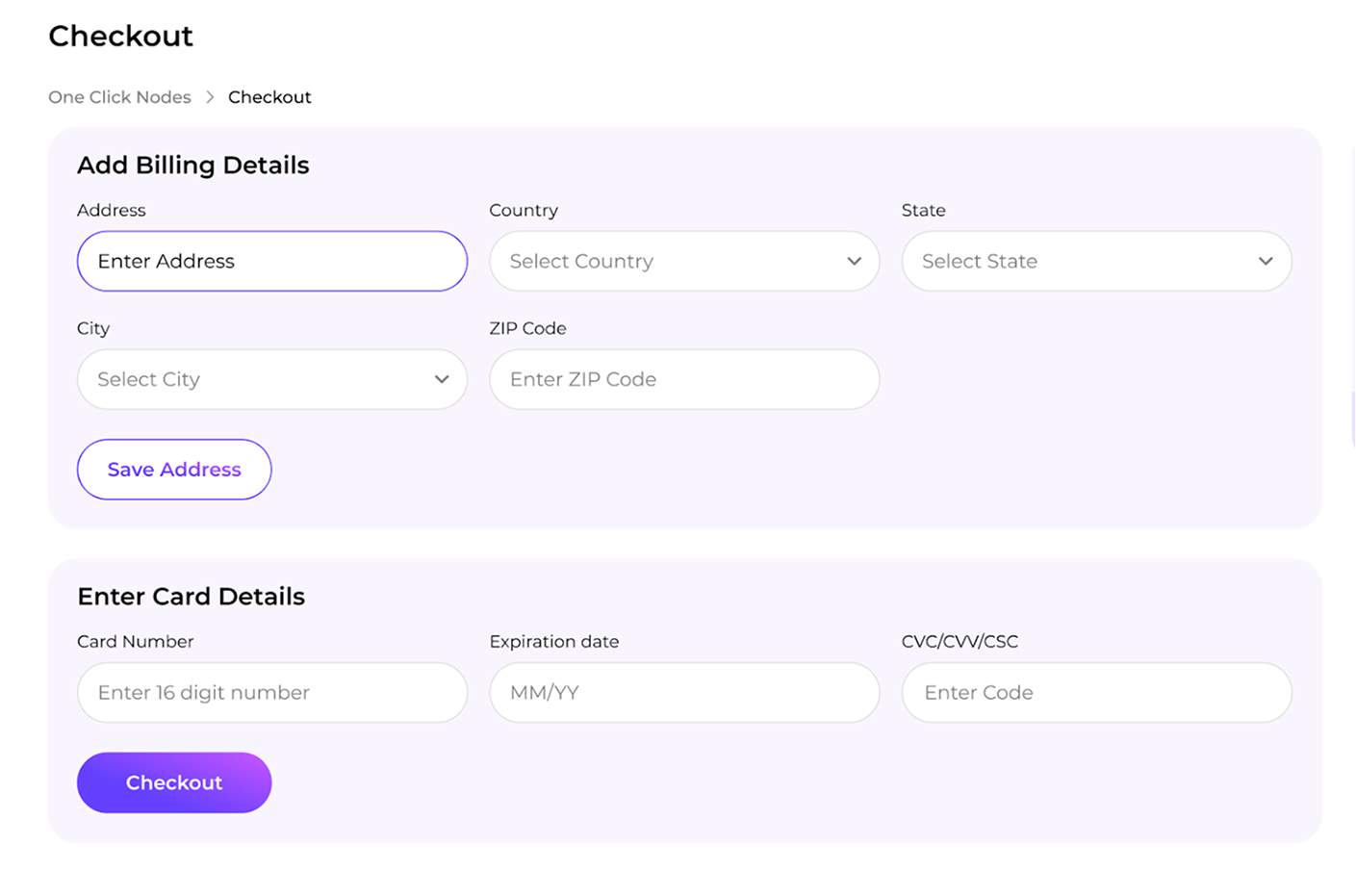
Step 4: Complete Secure Payment

  • Proceed to checkout and pay using an international credit/debit card.
  • No crypto or wallet connection is required at this stage.
Instanodes Dashboard

Step 5: Node Provisioning

After payment:

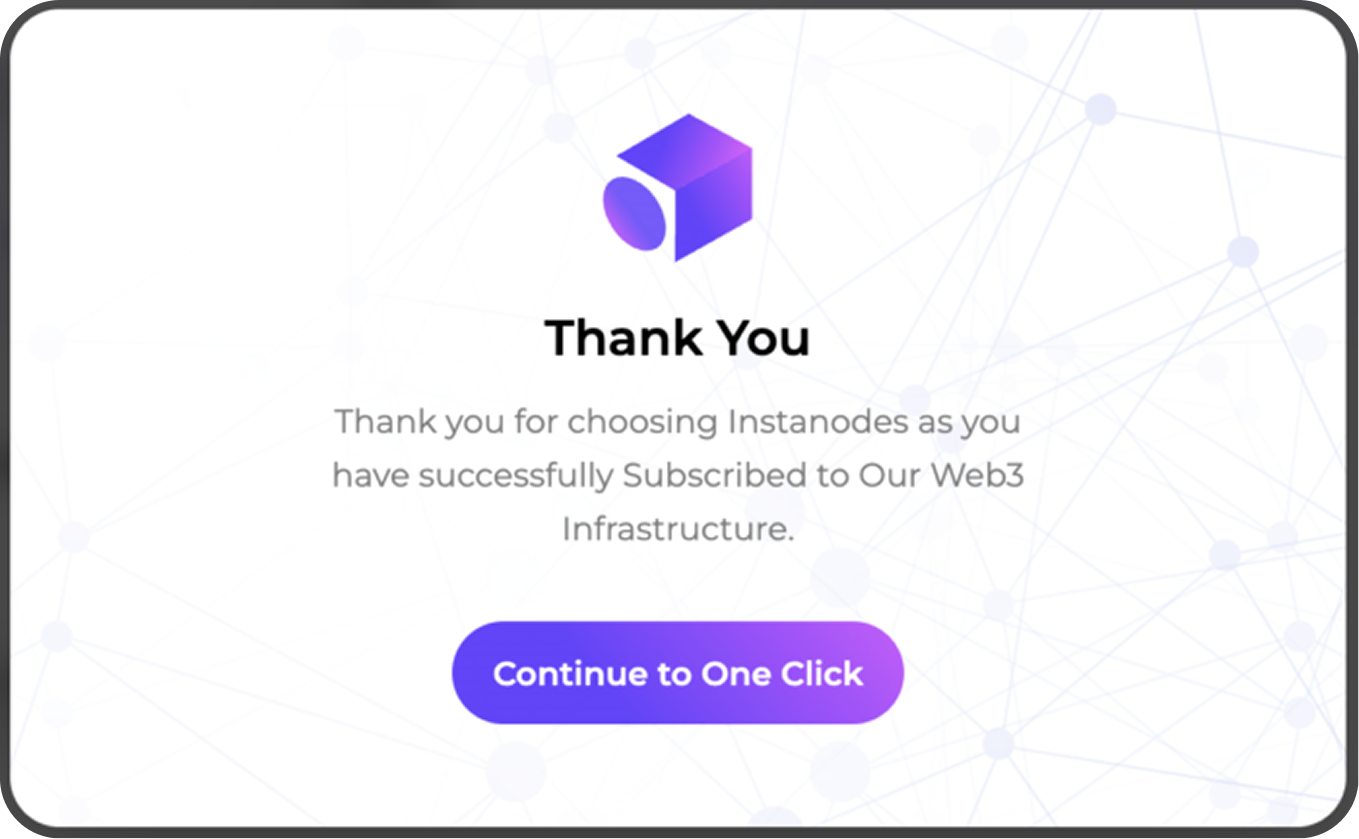
  • You’ll see a confirmation screen
  • Instanodes begins provisioning immediately
  • Your node is configured with the required ports, security rules, and monitoring
Instanodes Dashboard

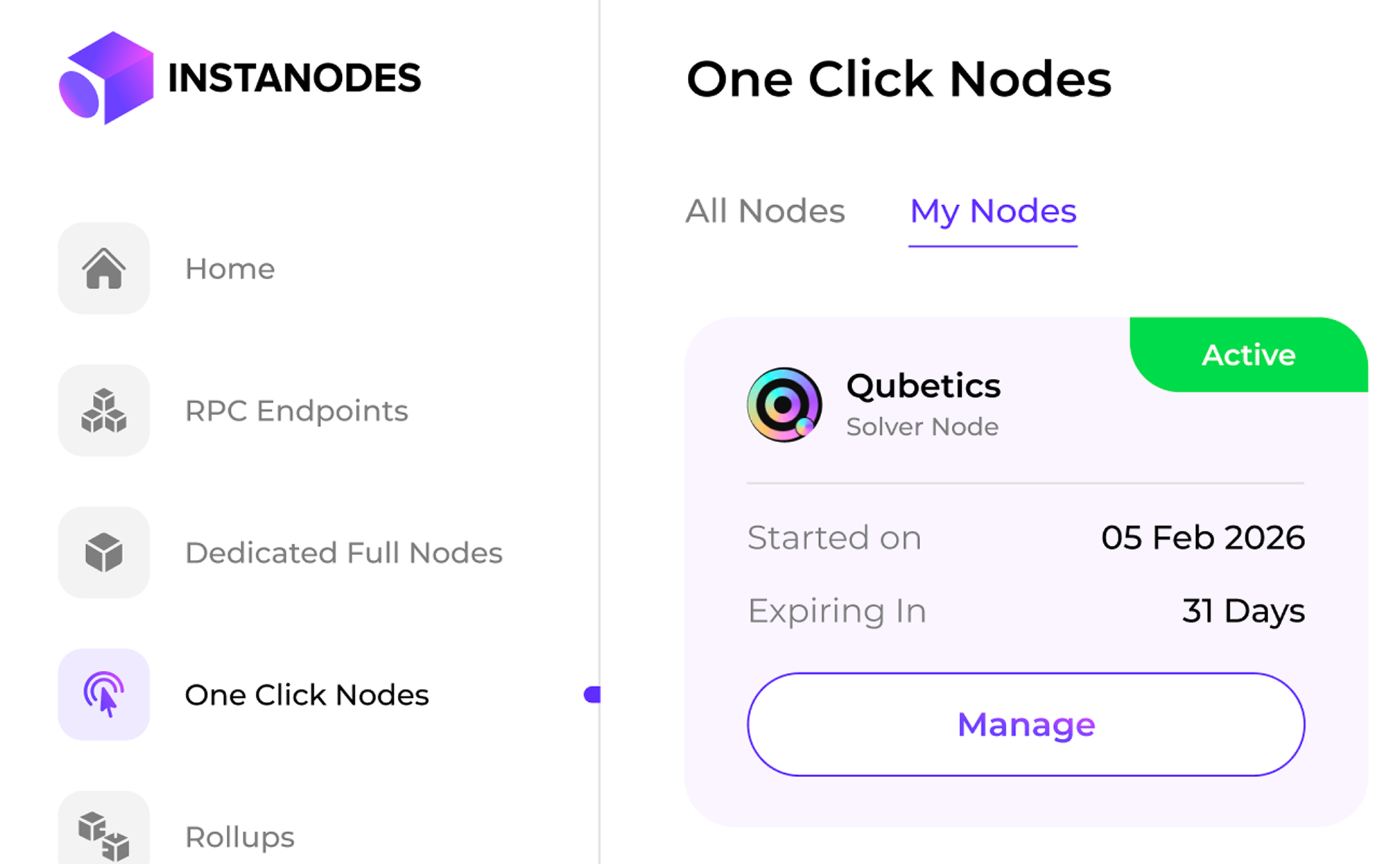
Step 6: Access Nodes In My Nodes Page

Go To My Nodes To Monitor:

  • Starting On
  • Expiring In
  • Node Status
  • Manage Your Plan.
Instanodes Dashboard

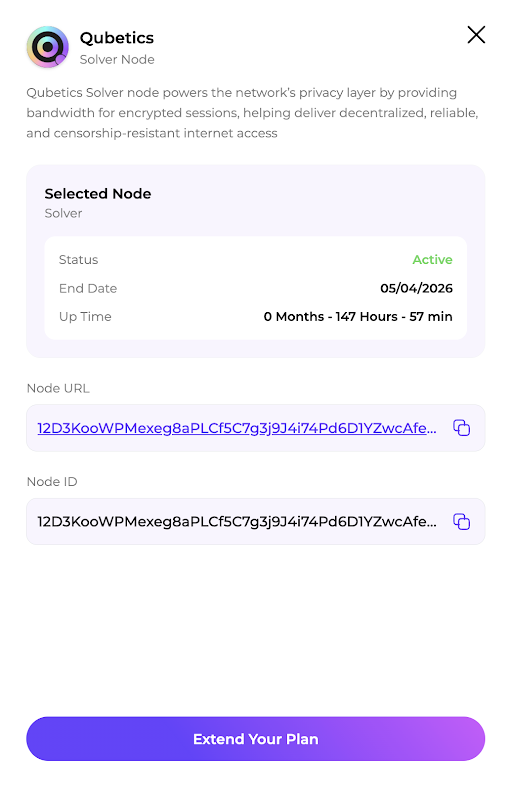
Step 7: Copy Your Node URL and Credentials

Node URL
Node ID
The HTTPS address of your node
Your unique solver identifier (also called Solver ID)
  • Click View to reveal credentials (shown once).
  • Copy the Node URL.
  • Copy Node ID

Note: After the node is deployed, you must complete the remaining setup steps yourself, including configuring your wallet.
Instanodes Dashboard

Step 8: for onboarding open the Qubetics Solver Dashboard

The Solver Dashboard is where you register your node, manage liquidity, and track rewards.

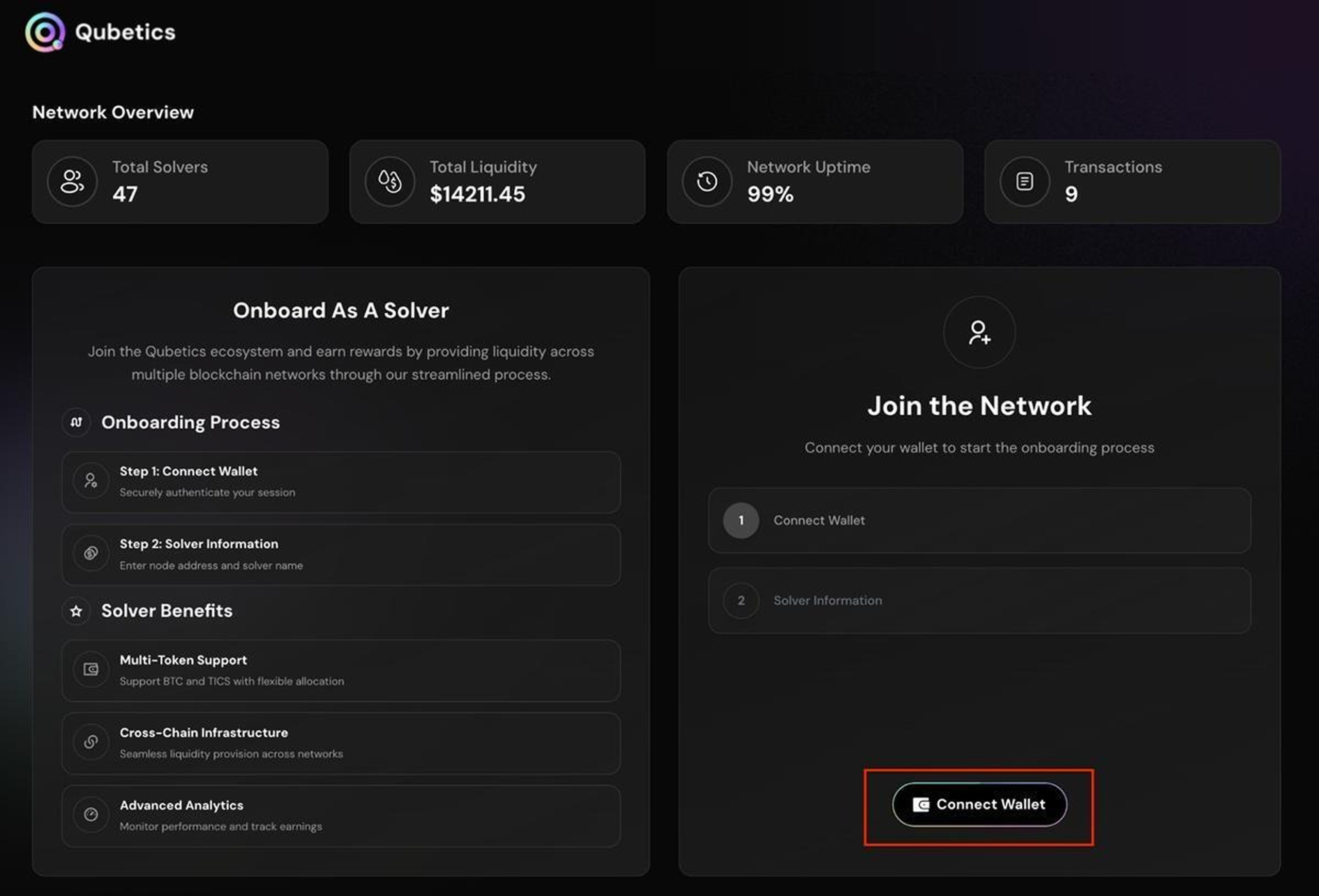
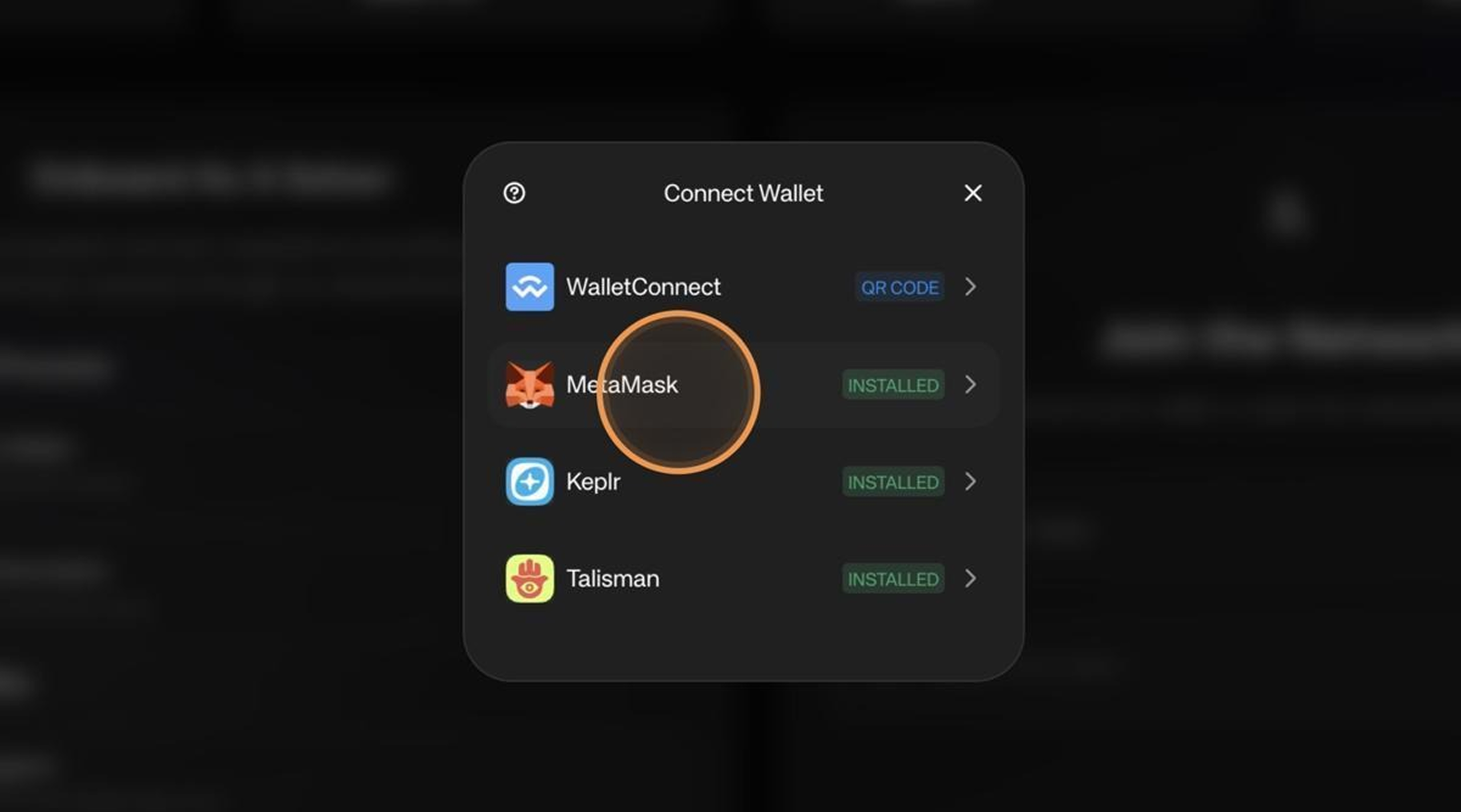
Step 9 Connect Your Wallet

Click the Connect Wallet button on the dashboard
Instanodes Dashboard

Connect wallet prompt on the Solver Dashboard
Instanodes Dashboard

Wallet connected — address auto-filled

Step 10 Register Your Solver

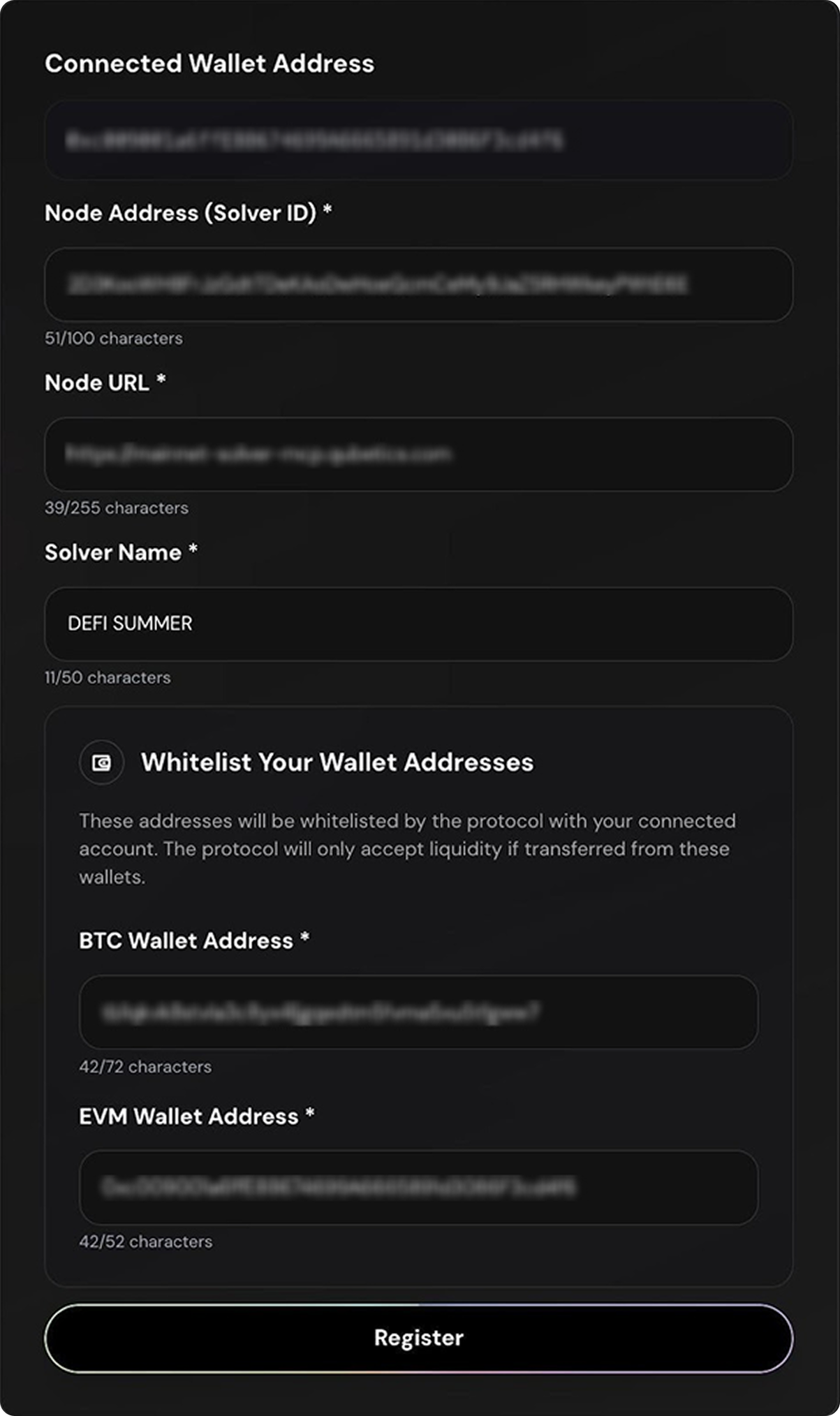
Complete the Solver Information form. All fields are required and must be unique across the network.
Instanodes Dashboard

Solver Information form

Connected Wallet Address
Node Address (Solver ID)
Node URL
Solver Name
BTC Wallet
EVM Wallet
Auto-filled when your wallet connects
Copy from your VPS server terminal or InstaNodes credentials
The HTTPS URL of your node (e.g. https://yourdomain.com)
A custom label — choose a unique name
Your whitelisted BTC wallet address for adding liquidity
Your whitelisted EVM wallet address for adding liquidity

Note: All field values must be new and unique. The platform will reject duplicate entries.

When the form is complete, click Register. Your wallet will prompt you to approve a transaction.
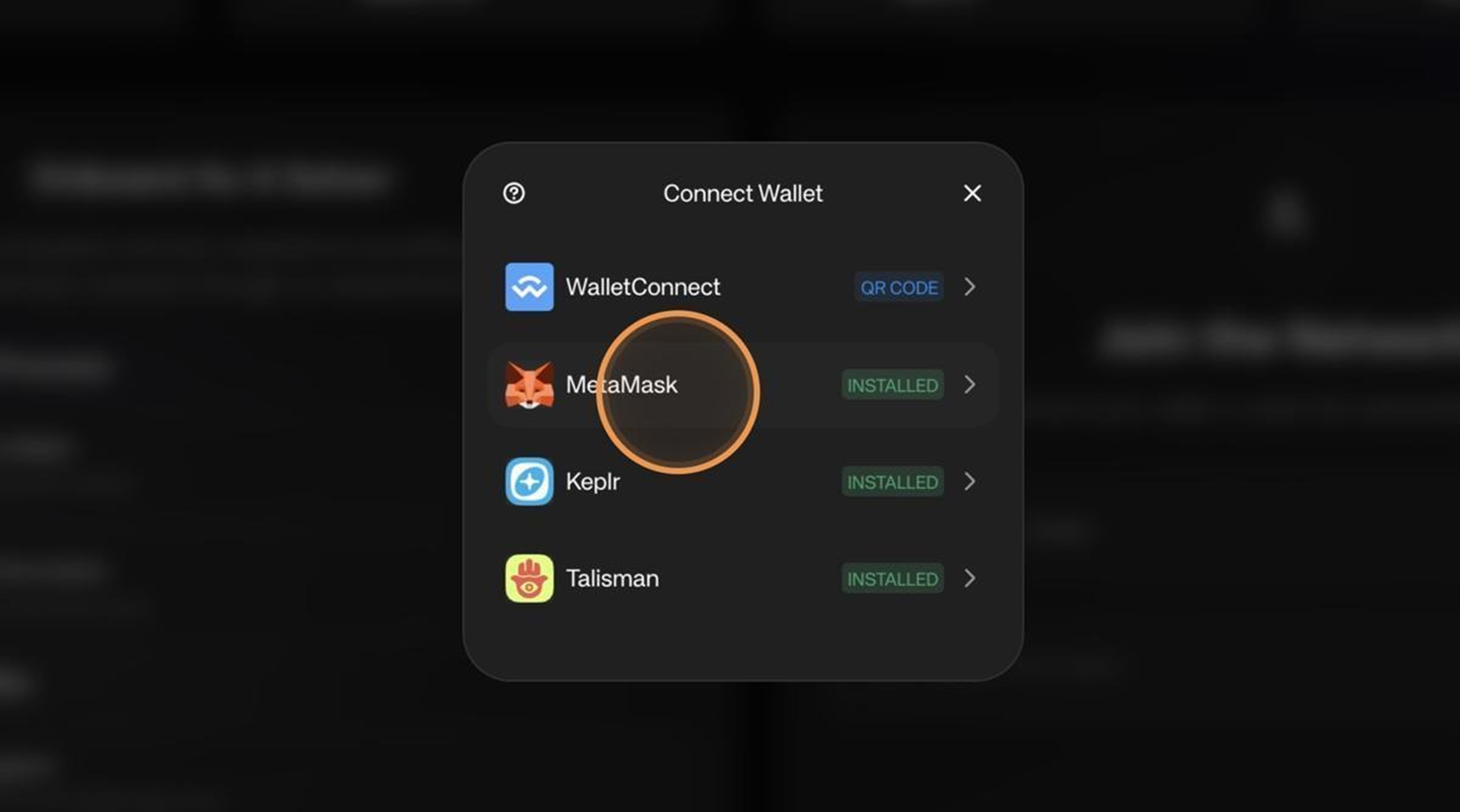
Connect Your Wallet Infographic

Wallet transaction prompt for solver registration

Step 11 Enter the Solver Dashboard
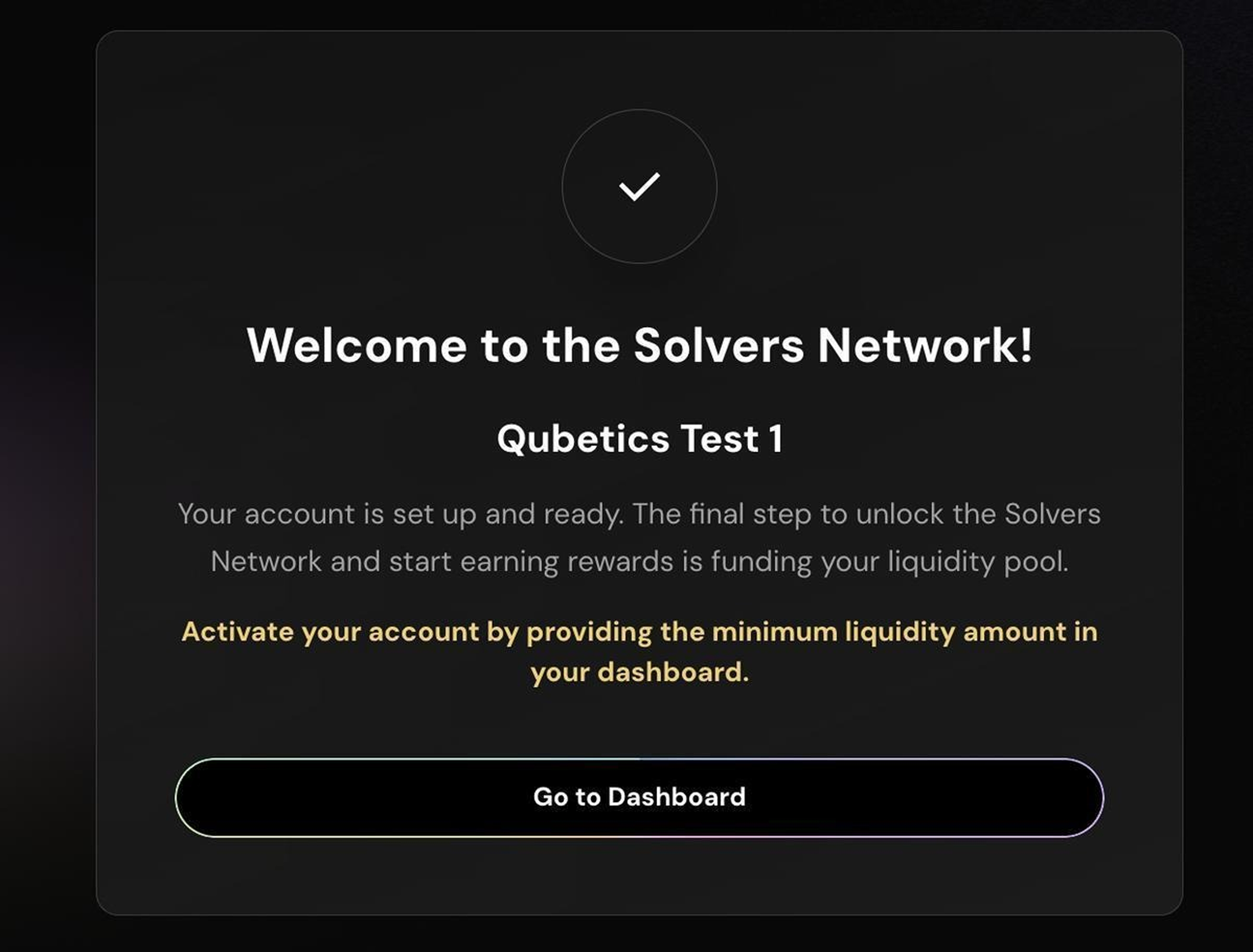
After registration, you are added to the solver network with a Pending status. You must add liquidity to activate your solver. Click Go to Dashboard to continue.
Connect Your Wallet Infographic

Registration confirmed — click Go to Dashboard

The dashboard displays your registered details and current status:

  • Node Status (Inactive until liquidity is added and verified)
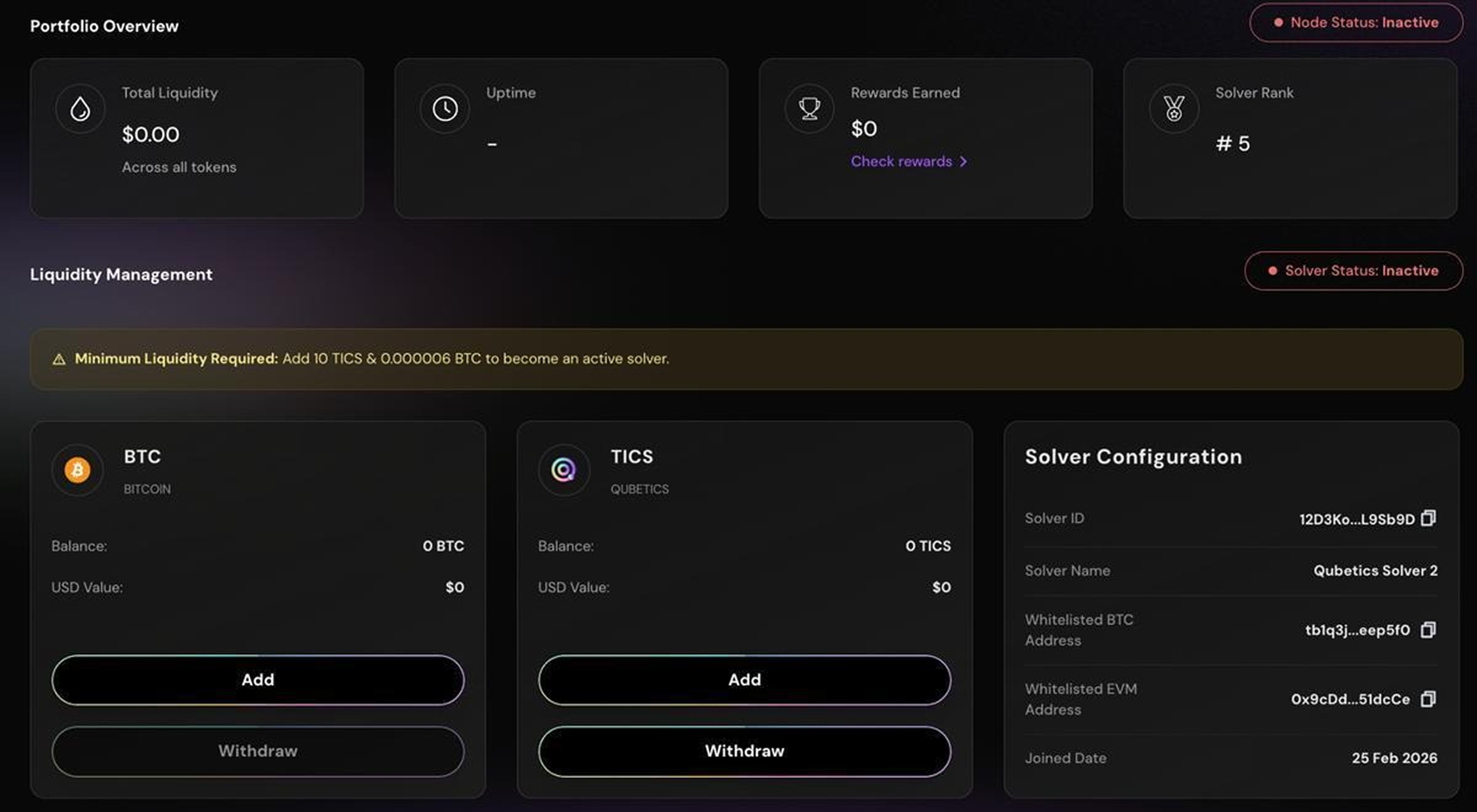
  • Liquidity Status (Inactive until liquidity is added and verified)
Connect Your Wallet Infographic

Solver Dashboard — initial view with Inactive status

For Adding Liquidity

The solver network currently supports BTC and TICS. You must add both tokens to activate your solver status.
  • On the dashboard, Check the minimum required amount shown for that token. You must meet this threshold.
  • Tick the checkboxes and click Show Address. A deposit address appears on screen.
  • Copy the address and transfer the required funds from your whitelisted wallet.
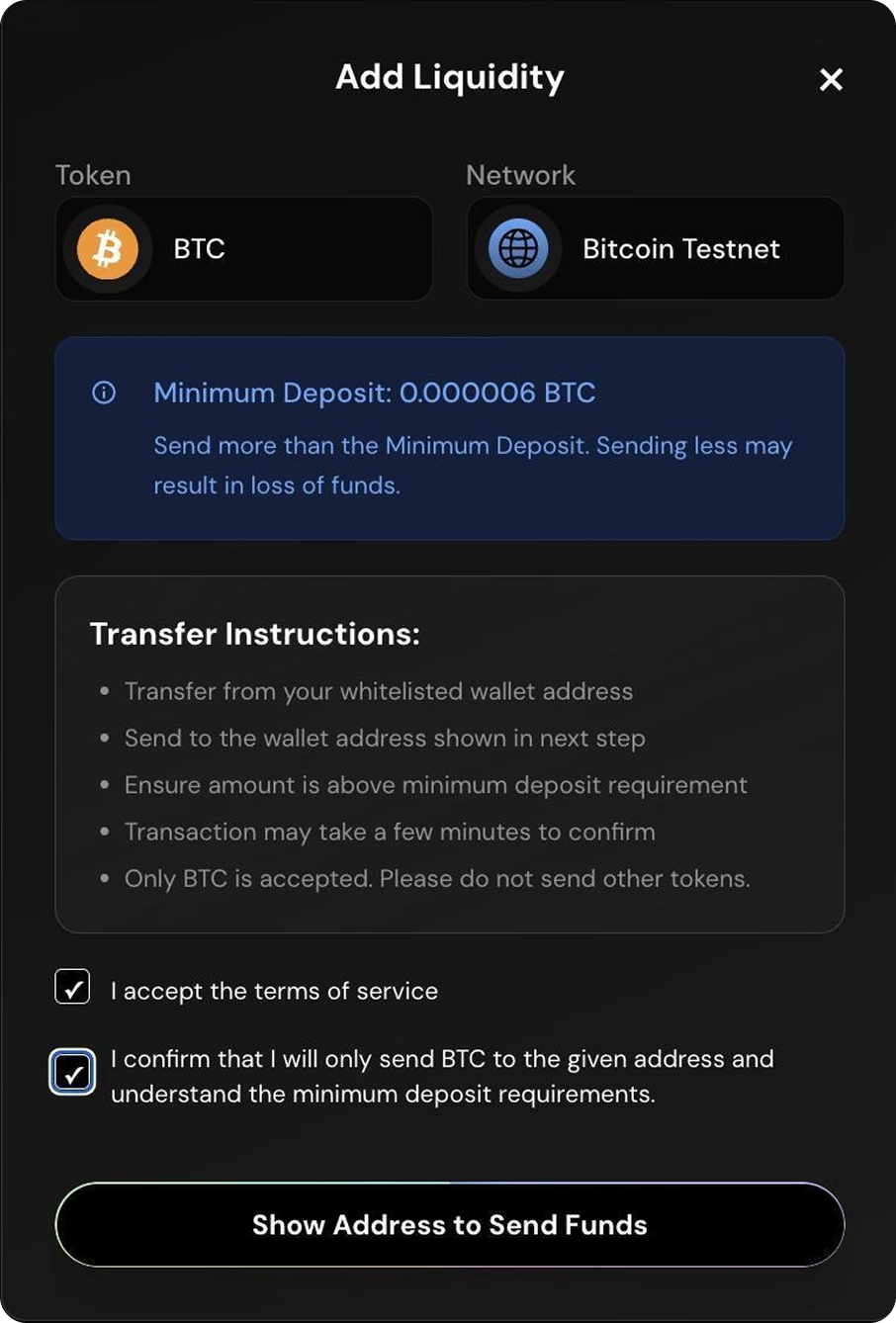
Connect Your Wallet Infographic

Add liquidity — token selection and minimum amount
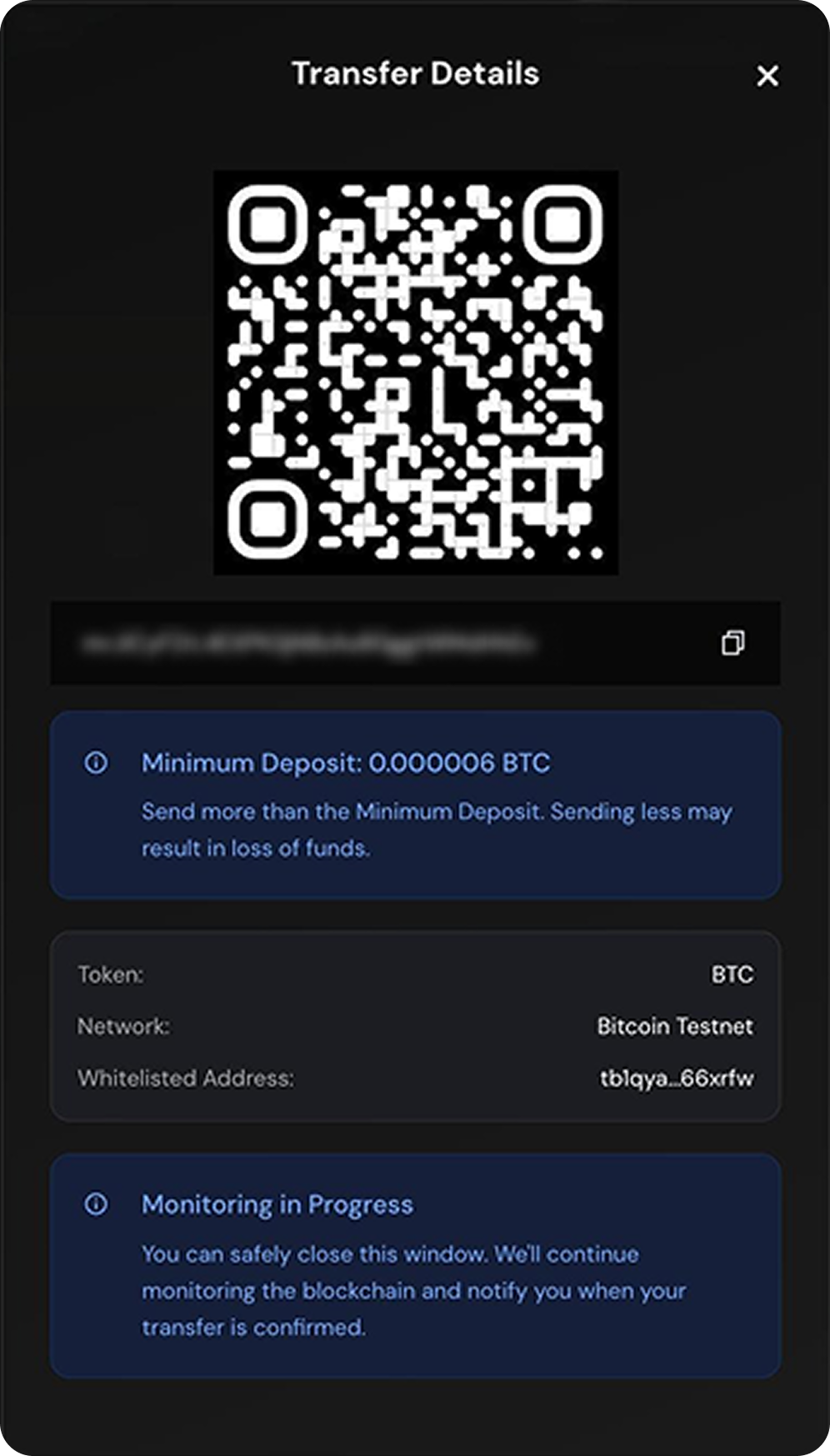
Connect Your Wallet Infographic

Deposit address revealed after clicking Show Address

Note: All field values must be new and unique. The platform will reject duplicate entries.
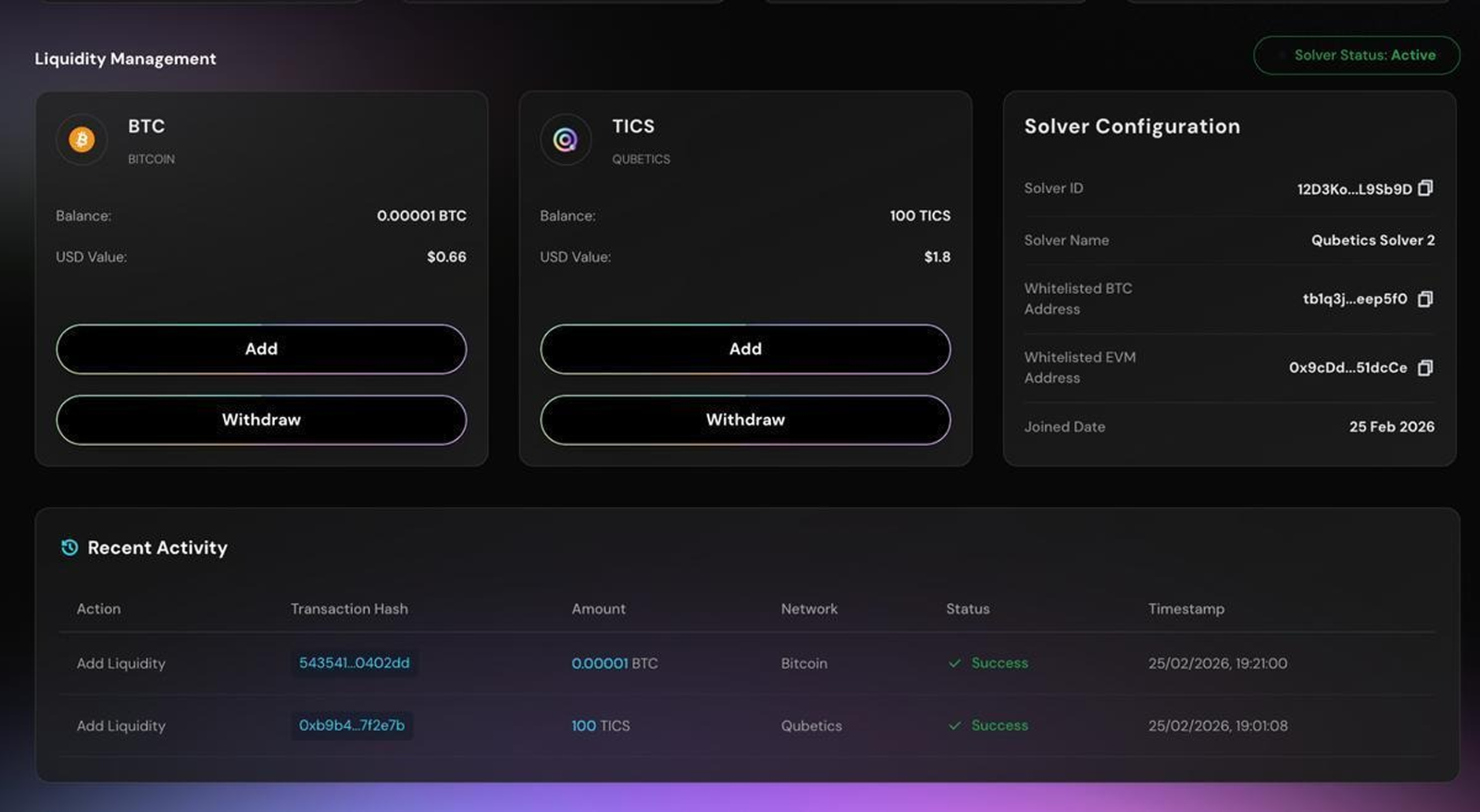
Once the transfer confirms on-chain, your balance updates on the dashboard and appears in the Recent Activity tab.
Connect Your Wallet Infographic

Liquidity balance updated after successful deposit

Verifying Your Solver Status
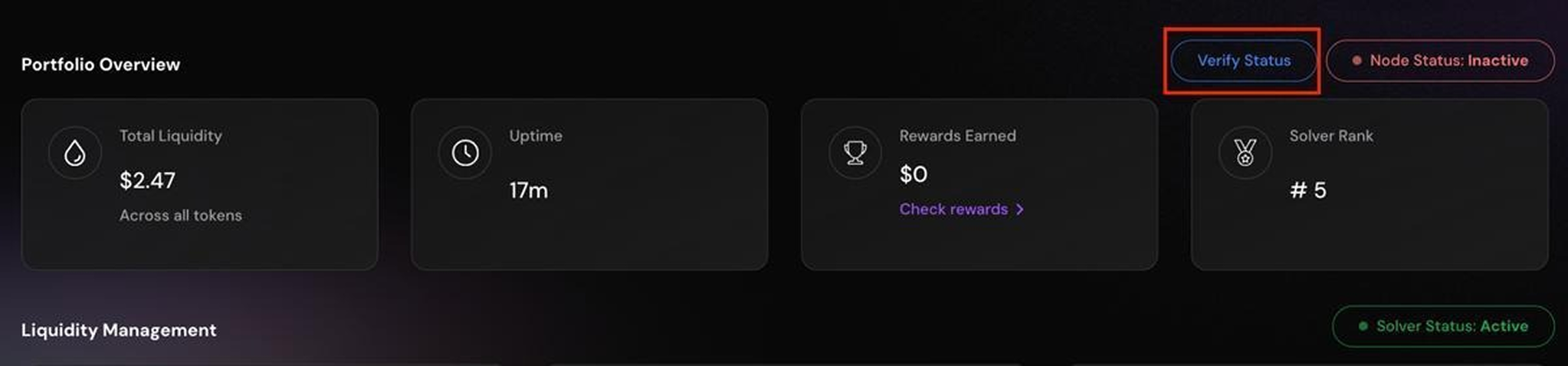
After liquidity is added, a Verify Status button appears next to your node status.
Connect Your Wallet Infographic

Liquidity balance updated after successful deposit

  • Click Verify Liquidity.
  • Approve the transaction in your wallet.
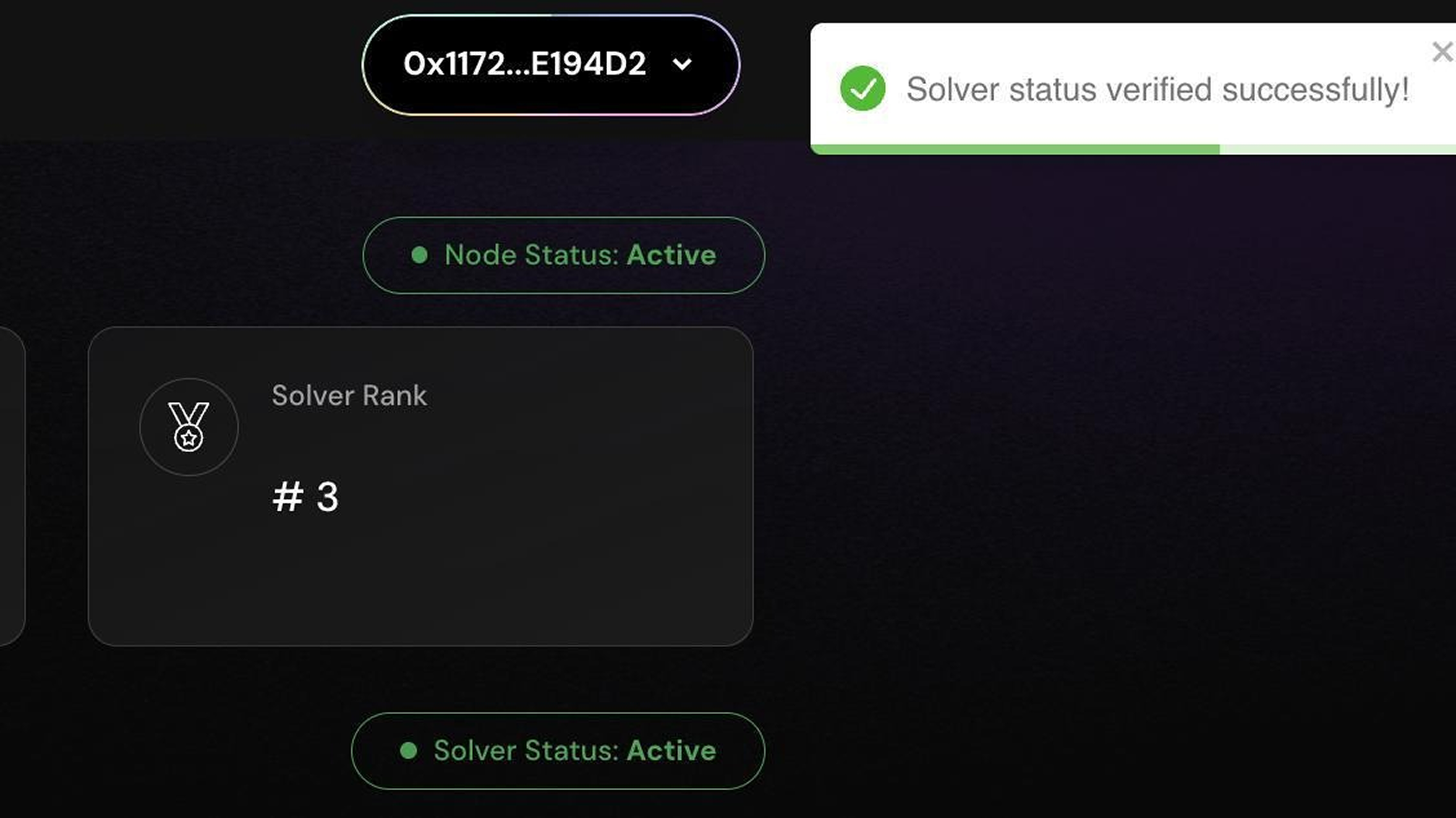
Once verified, your Node Status and Solver Status both change to Active. Your solver is now live on the network.
Connect Your Wallet Infographic

Solver Dashboard showing Active status after verification

Common Checks and Troubleshooting

Subscription Expiry and Grace Period

Since Instanodes handles infrastructure, you can focus on maintaining reliability and maximizing rewards. If you don’t renew your Instanodes plan :
  • 7-day grace period.
  • Infrastructure remains active.
  • Time to withdraw or resume.
  • After the grace period, resources are released.

Solver Status Shows Inactive After Adding Liquidity

You need to complete the verification step. Click the Verify Liquidity button on the dashboard and approve the transaction in your wallet. Status updates to Active after the transaction confirms.

Registration Form Not Accepted

All fields must be unique across the network. If the form is rejected, check that your Solver Name, Node ID, and Node URL have not been used before. Try a different Solver Name if needed.

Claim Button Is Disabled

Your available reward amount is below the minimum claim threshold for that token. Continue operating your solver. The button activates once your balance reaches the minimum.

Node URL Not Accepted

The dashboard only accepts HTTPS URLs. Make sure your URL begins with https://. If you are Using a raw IP address, follow the HTTPS binding steps in Section 2 before registering.

Liquidity Transfer Not Showing

Check that you transferred funds from your registered whitelisted wallet only. Transfers from other addresses are not recognized. Allow time for the transfer to confirm on-chain, then refresh your dashboard.

Full Withdrawal Warning

If you withdraw your full liquidity balance, your solver becomes inactive and stops earning rewards. The dashboard shows this warning before you confirm. A partial withdrawal above the minimum threshold keeps your solver active

Author

Monika Lath LinkedIn

Content Manager

Content specialist with 15 years of experience across diverse niches, currently focused on Web3 infrastructure, nodes, rollups, and appchains.

Article Reviewed by : Dk Junas LinkedIn

Related articles